Support
There are several ways to get support. We're here to help you with any issues and questions. In case we get a lot of requests, we might have to give priority to our paying customers, but don't worry, we'll do our best to help everyone out as soon as we can. Please keep in mind that support will be slower over weekends and holidays.
We try to get back to customers as soon as possible. Please keep in mind that support will be slower over weekends and holidays.
Discord
Joining our Discord server is the preferred and fastest way to get support.
Superhive Inbox
You can also contact us via the Superhive Inbox if you purchased the addon there. Please refer to the official Superhive Inbox documentation.
Feature Requests
We appreciate feature requests, we try to prioritize features that have the most demand from the community. Let us know what you are missing!
Reporting Bugs
When reporting a bug, please keep in mind that in order to solve the problem efficiently we need as much information as possible. We ideally need any output in the Blender console window and log files from polygoniq addons and asset packs you have installed.
If you spot any error dialogs or messages please also include them in the bug report. Thank you for helping us improve our products!
- Open a new blender instance
- Reproduce the problem you are dealing with
- Go to Edit → Preferences → Addons
- Find
engon
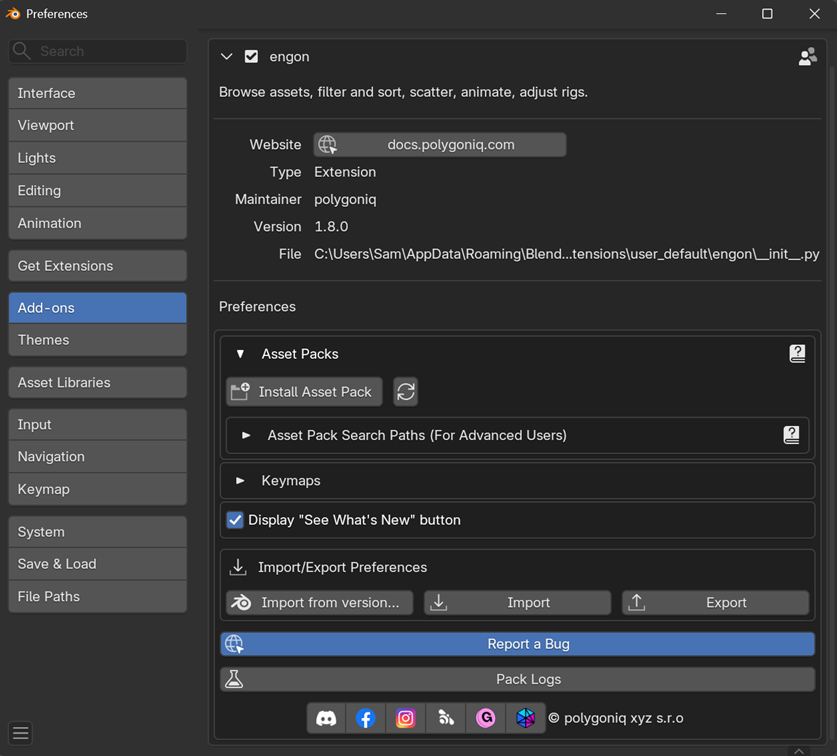
Use a bug report form
- In
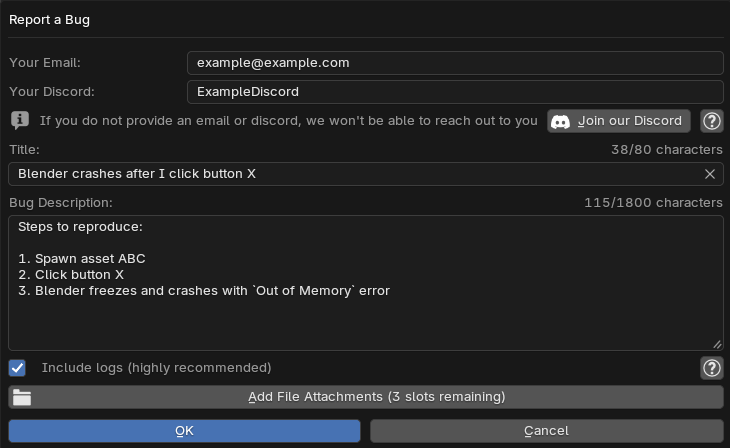
engonpreferences, find theReport a Bugbutton, click it. A bug report form will appear. - You may provide contact information, so we can contact you to obtain further details or inform you whether the bug was resolved.
- Describe the bug as much as possible, including the steps to reproduce it, etc.
- You have an option to automatically send logs with the report.
- You may attach up to three additional files with the report (8 MB per file, 25 MB in total).
Alternative methods
- In
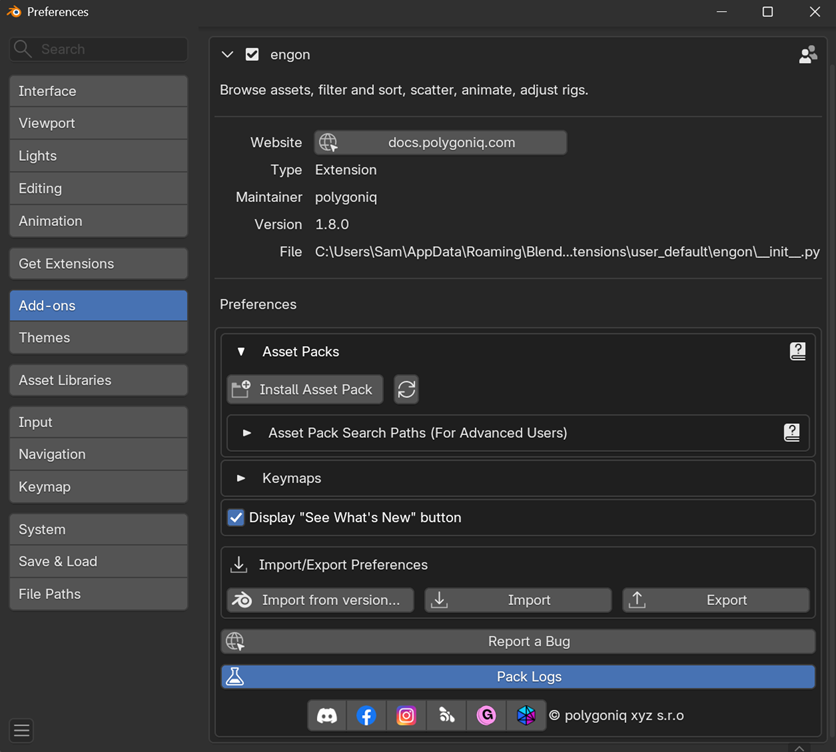
engonpreferences, find thePack Logsbutton, click it. - It will open a folder with all polygoniq logs in a
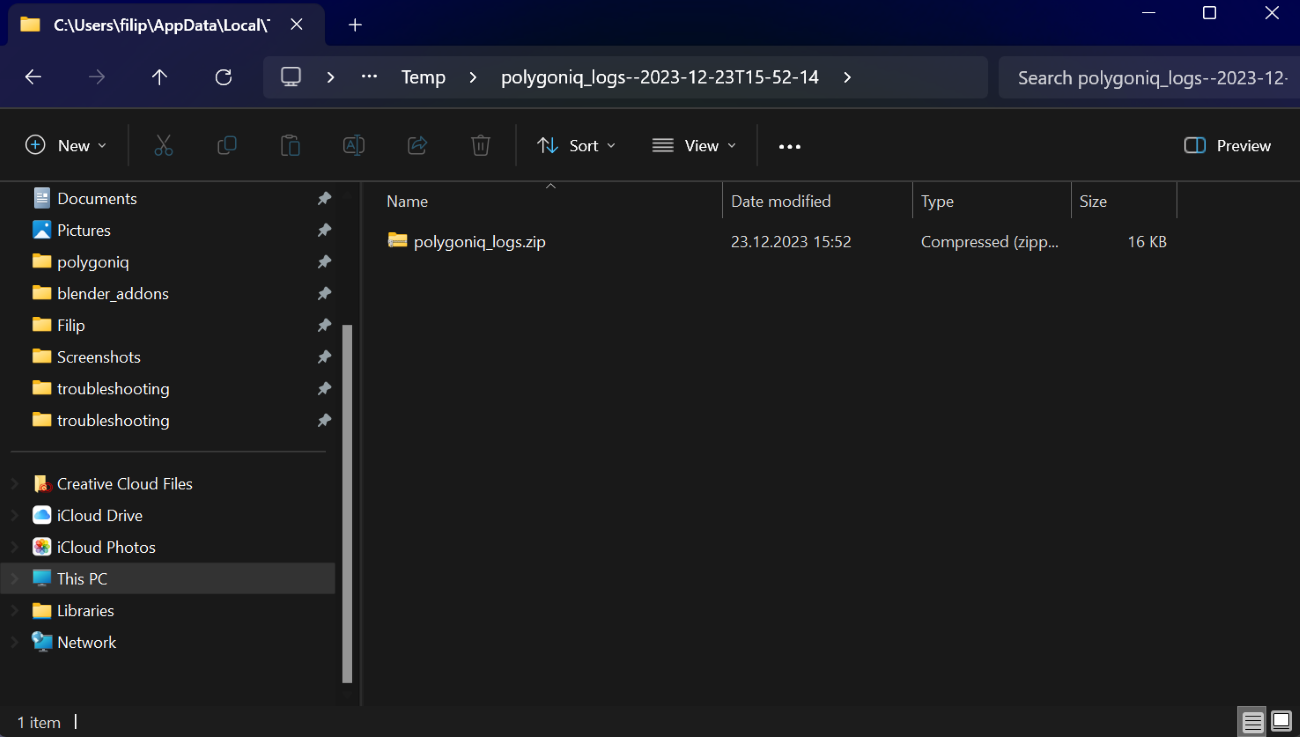
zipfile from the last two hours. If you clicked onPack Logspreviously, you can find the logs in a separate folder in the directory above identified by a time stamp. Older logs than 2 hours are deleted to not consume disc space unnecessarily. - Send us the
polygoniq_logs.zipfile. You can reach out to us via Discord or the marketplace where you got the product
Console window
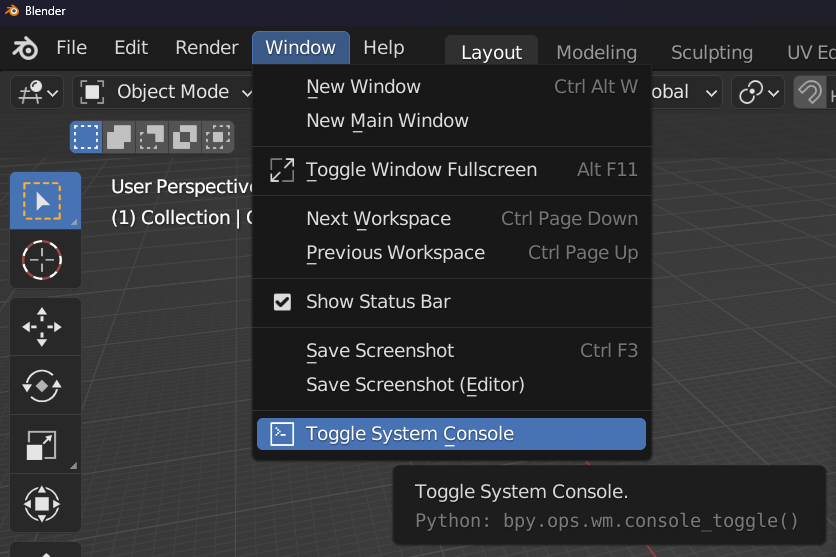
This depends on your operating system.
On Windows click Window → Toggle Console Window to bring up the console window. Copy
everything in it and paste it into a text file
(e.g. engon_console.txt). We would be
super grateful if you sent us a text file and not a screenshot but a screenshot is better than
nothing  .
.