Attribute Visualization
attribute editor can draw attribute values directly on top of your mesh in the 3D Viewport, letting you see at a glance how data is distributed across vertices, edges, faces, or face corners.
Info
Visualization is only active in Edit Mode on a mesh object.
Turning Visualization On and Off
Each attribute has its own visualization toggle. You can enable or disable visualization for an attribute from two places:
- The Editor Panel / Popup: Click the Eye Icon next to the attribute value in the Sidebar panel or the Ctrl+D popup.
- The Mesh Data Properties: Use the
Visualize / Hide <attribute>toggle button located inProperties Editor → Data (Green Triangle) → Attributesbelow the active attribute.
When visualization is active for an attribute, labels are drawn next to each corresponding mesh element (vertex, edge midpoint, face center, or corner position). If multiple attributes are visualized at once, their labels stack above the same element.
Editing attributes from scripts
The per-attribute visualization state is tracked by attribute name and kept in sync as you add, remove, rename, or retype attributes through Blender's UI. Adding or removing several attributes at once from a script can bypass this syncing and reset which attributes are marked for visualization. Toggle the Eye Icon again afterwards to restore it.
Visualize on: Selected or All
The Visualize on filter controls which elements display text labels:
- Selected: Labels are only drawn over selected elements.
- All: Labels are drawn over every element of the entire mesh.
This filter is shared by all visualized attributes and can be found at the top of the Attributes panel or inside the Properties Editor → Data → Attributes section.
Performance
On heavy meshes, setting this to All can render a huge number of labels and impact viewport frame rates. Switch to Selected to keep the viewport responsive.
Label Occlusion (X-Ray)
- In
AllMode: Labels behind solid geometry are hidden. You can see them through geometry by enabling X-Ray mode (Alt+Z) or switching to Wireframe shading. - In
SelectedMode: Attribute labels are always visible through solid geometry by default.
These behaviors can be changed inside the addon preferences.
X-Ray Toggle Button
Next to the Visualize on filter in the Attributes panel there is an X-Ray button that toggles the viewport's X-Ray mode (the same as pressing Alt+Z), so you can flip labels between occluded and see-through without leaving the panel.
Occlusion accuracy and the viewport clip range
Occlusion is decided by comparing each label's depth against the viewport's depth buffer, whose precision depends on the ratio between the Clip Start and Clip End distances (found in Sidebar (N) → View → View → Clip Start / End). A very small Clip Start spreads that precision too thin and can make labels wrongly appear through, or hide behind, geometry. If you see a lot of these artifacts, raise Clip Start slightly.
Selected Corner Highlights
When you work with Face Corner attributes it can be hard to tell which corners are selected and active. To help with this, attribute editor draws a small arc at each selected face corner, with the active corner drawn in a separate color. Both colors are taken from your Blender theme (the same selected and active edit-mesh colors used elsewhere in the viewport), so they match the rest of your editing experience.
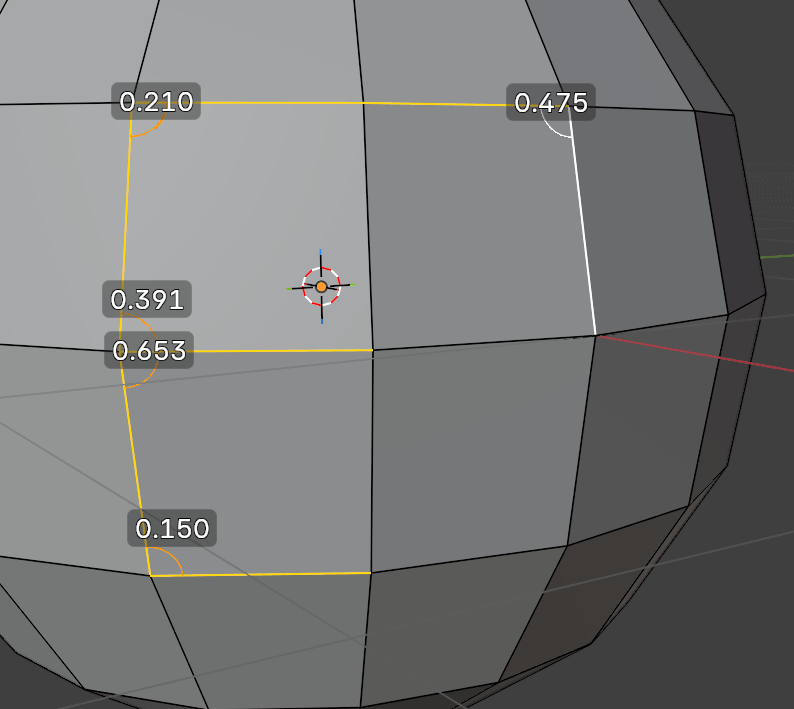
By default the highlights only appear when a corner attribute is being visualized, but you can change when they are drawn in the addon preferences using the Corner Selection Highlight option.
Customizing the Visuals
You can completely customize the look of the viewport overlays inside the addon preferences. Adjustable settings include:
- Text size and color
- Label background color and opacity
- Displayed decimal precision for floats
- Maximum character limits for strings
- When to draw selected corner highlights, plus their arc radius, maximum size, number of segments, and line width
Unsupported Attributes
A few attribute types cannot be visualized in the viewport (see Supported Attributes for more information).
If an attribute is unsupported, the toggle will be unavailable and the Properties Editor will display: Attribute type "<type>" is not supported.