Panel Overview
attribute editor adds its UI in couple of different places. Most of the UI panels are active only in Mesh Edit Mode.
Note
Screenshots below use the free example scene.
Attributes Panel in the 3D Viewport
The main Attributes panel is located in the right-hand sidebar of the 3D Viewport, in the Item tab and polygoniq tab. To open the sidebar, press the N key in the 3D Viewport.
Warning
If you do not see the panel, make sure you are in Edit Mode on a mesh object and that attribute editor is enabled in Edit → Preferences → Add-ons.
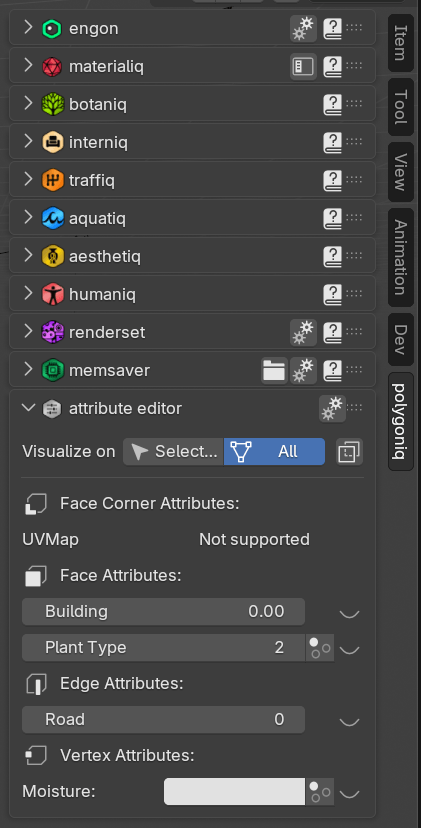
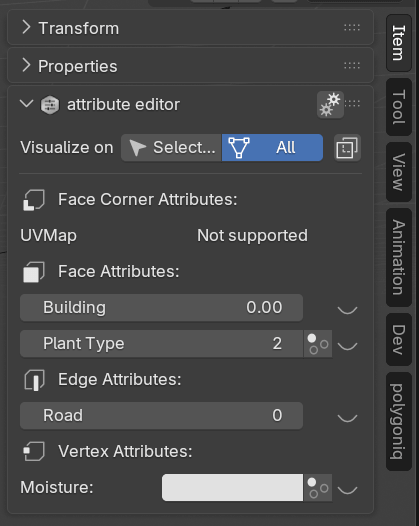
The panel lists all attributes of the active mesh grouped by their domain (Face Corner, Face, Edge, Vertex) and lets you:
- Read and edit attribute values for the current selection.
- Toggle attribute visualization in the 3D Viewport for each attribute.
- Switch the visualization filter between
SelectedandAll, and toggle viewport X-Ray with the button next to it. - Open
attribute editorpreferences from the gear icon in the panel header.
For a detailed walk-through, see Editing Attributes and Attribute Visualization.
Edit Attributes Popup
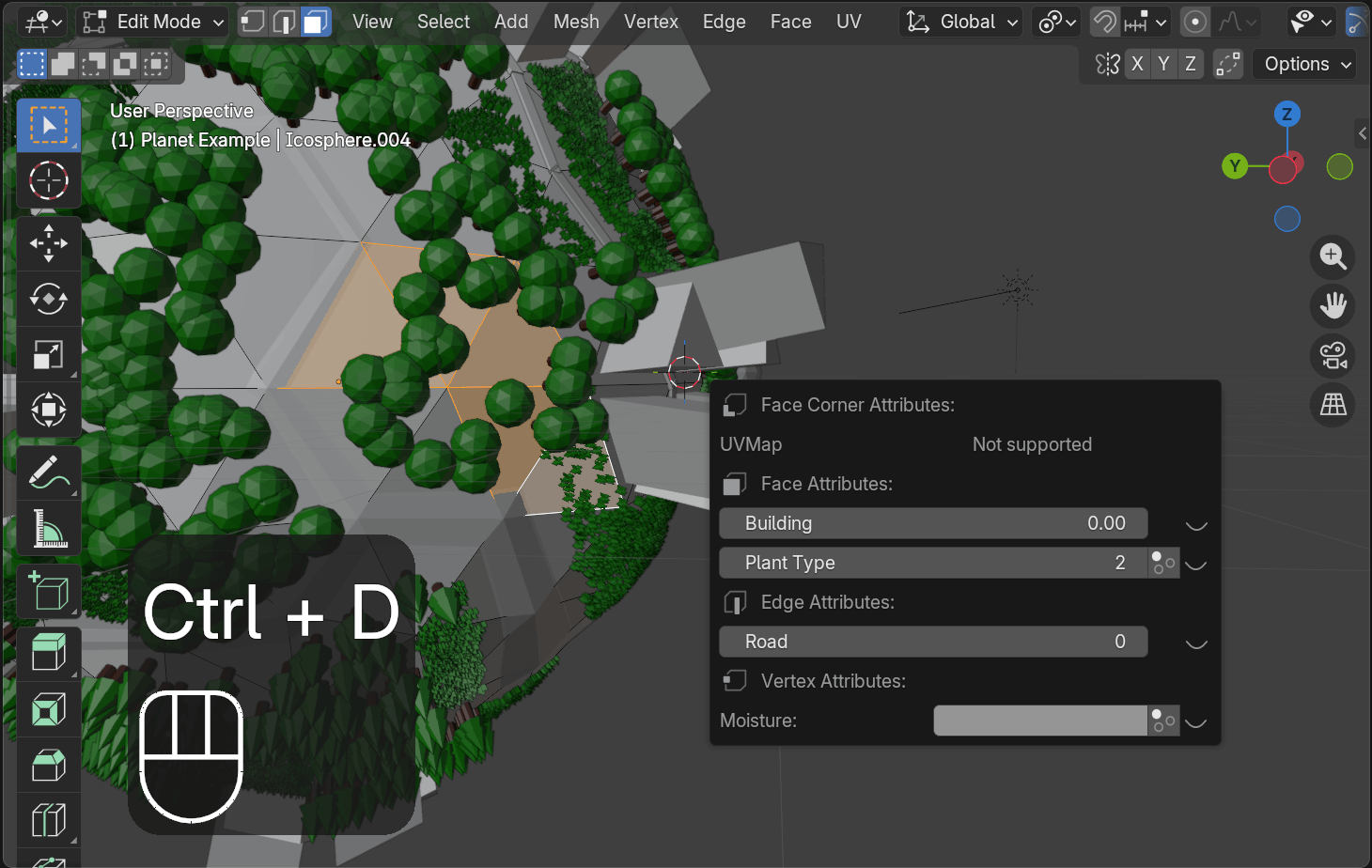
In addition to the sidebar panel, the same attribute editor can be opened as a popup by pressing Ctrl+D with the mouse cursor inside the 3D Viewport in Edit Mode. This is useful when you do not want the sidebar open. The shortcut can be changed in the addon preferences.
Attributes Section in the Properties Editor
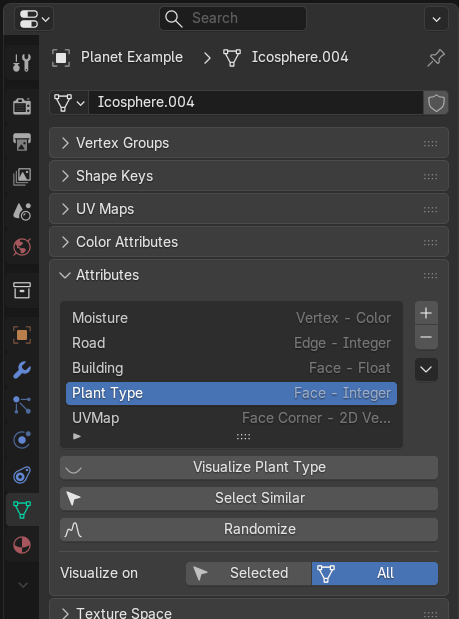
attribute editor also extends the native Blender Attributes section under
Properties Editor → Mesh Data → Attributes. When you are in Edit Mode and an attribute is active
in the Blender attribute list, the following extra controls appear below it:
- A Visualize / Hide toggle to enable or disable visualization for the active attribute.
- A Select Similar operator for selecting mesh elements with similar attribute values.
- A Randomize operator for assigning random attribute values to selected elements.
- A
Visualize onfilter (Selected/All) that controls which elements are labeled in the 3D Viewport.
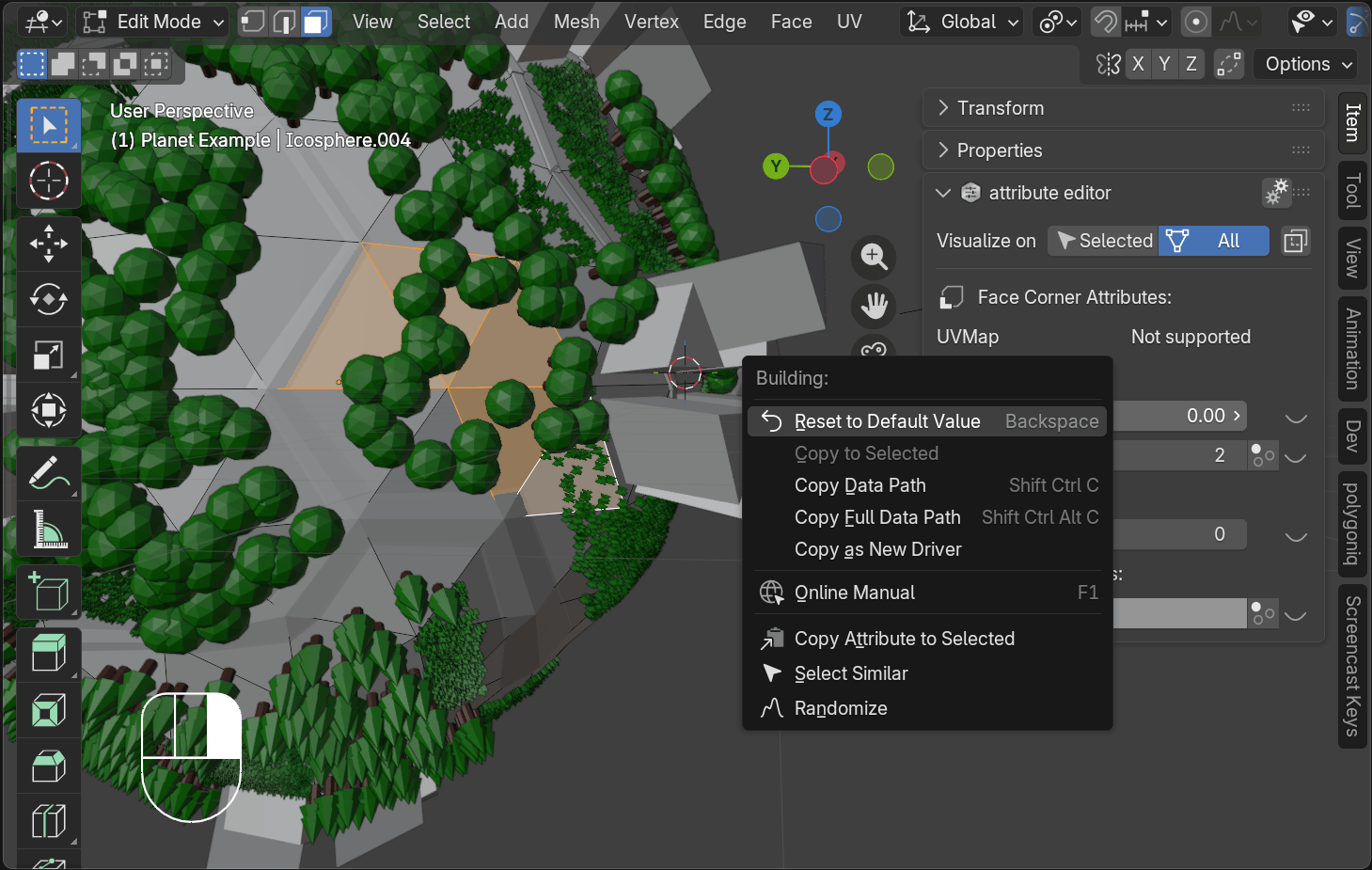
Right-Click Context Menu
Right-clicking any attribute field in the Attributes panel or the Ctrl+D popup opens Blender's
context menu extended with attribute editor operators:
Quick Overview of Features
| Feature | Where to find it |
|---|---|
| Editing Attributes | 3D Viewport Item tab and Ctrl+D popup |
| Attribute Visualization | Toggle from any attribute row, configured in Preferences |
| Select Similar | Properties Editor attribute section, right-click menu on an attribute value |
| Randomize Attribute | Properties Editor attribute section, right-click menu on an attribute value |
| Copy Attribute to Selected | Right-click context menu on an attribute value |
| Preferences | Gear icon in the panel header, or Edit → Preferences → Add-ons |