Scattering Assets
engon comes with a scattering system that can be used to spawn a predefined preset or change
options on how the scatter will be spawned. You can find scatter related options in the
Scatter panel. Scatter panel is further split to sub-panels where the individual settings can be
found.
pps - polygoniq particle systems
polygoniq particle systems are Blender particle systems that are managed through the scatter
sub-panel. Using scatter functions to create and manipulate particle systems ensures correct
naming and enables all of the additional functions to work. Those particle systems have names
prefixed with pps_ to differentiate them from other. Name of the particle system matches name
of the instance collection and of the modifier in modifier stack.
Why is the panel empty?
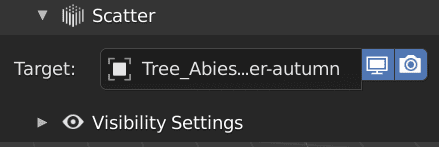
Scatter sub-panel operators will not show up if the target object is not suitable for particle
systems. For example you cannot create a particle system on a instanced collection object,
volume, curve, etc.
Scatter sub-panel
Main section of scatter panel consists of target object, buttons to add, remove or rename active particle system and a list that displays all presets on the target object.
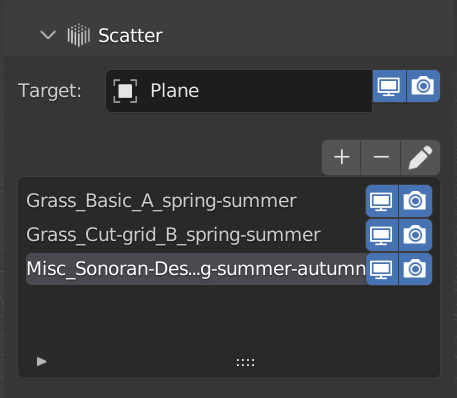
Targetis a container object for the particle systems. This object's visibility can be toggled by the buttons next to its name. Target object is the same as active object.Buttonsabove the list can be used to manipulate presets.+is used to create new presets,-removes active particle system.Pencil iconrenames the particle system.Presets Listdisplays all the polygoniq particle systems on the target object. Visibility of each layer can be toggled for render and viewport individually.
Tip
Some botaniq presets come with multi-layer particle systems. You can create these by yourself
too. Create multiple empty particle systems and customize each layer separately. For
example one layer can contain grass, second one trees, third rocks, etc.
Spawning preset
Use either pre-made particle system or a empty particle system can be spawned. Spawn particle
systems using the engon Asset Browser or E key. You can filter by particle systems filter.
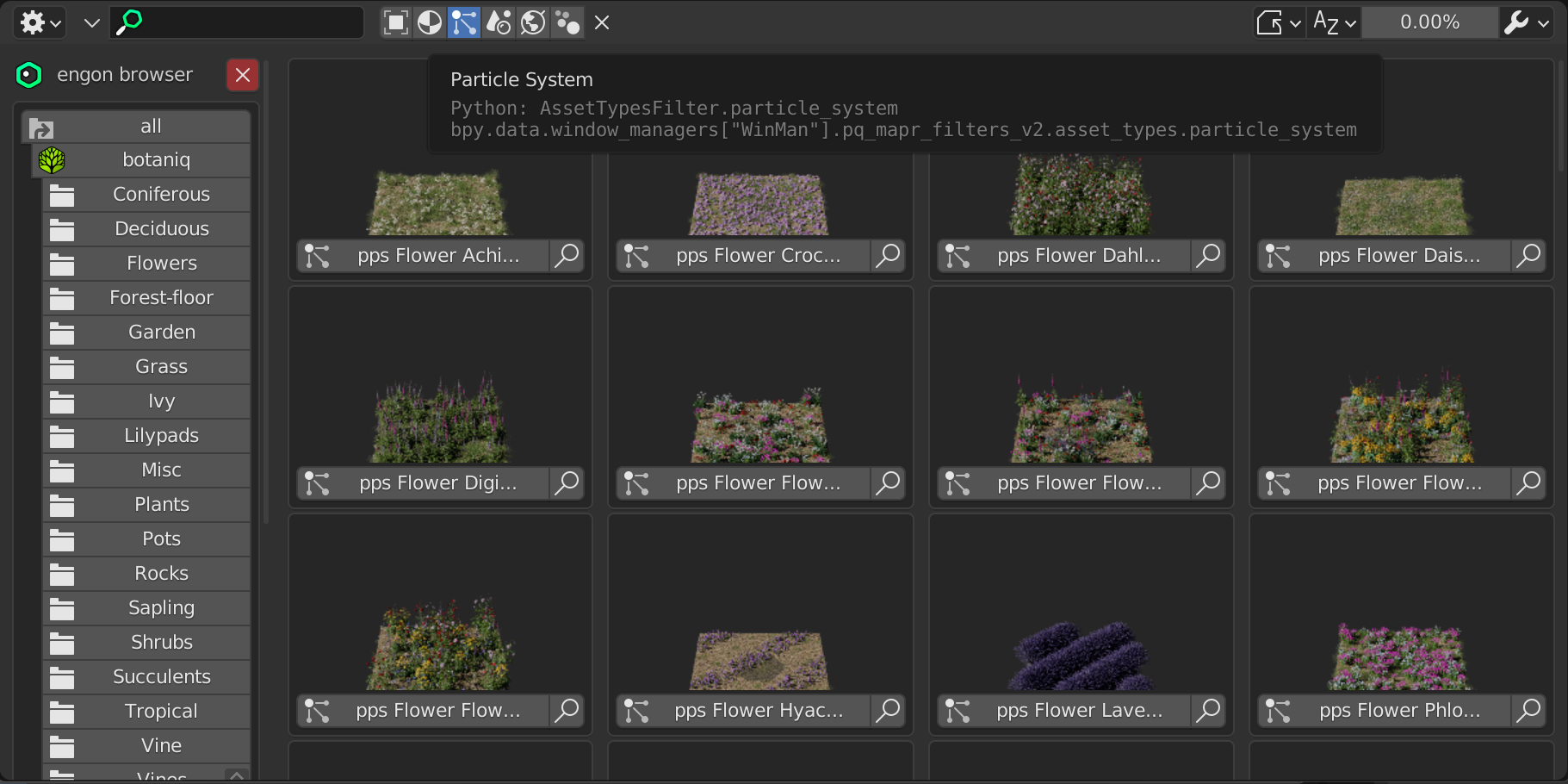
Particle settings options are located on the top right of the engon Asset Browser header, in the
Asset Spawn Options.

Display Typelets you to swap betweenTextured,Solid,WireandBoundsshading modes for the viewport.Display Percentagemodifies the percentage amount of particles shown in the viewport.Link instance collection to scenecheckbox. When enabled (default), individual models scattered in the presets will be added to the scene 10 meters below the world origin(0, 0, 0). This is useful for editing the objects directly.Enable Instance Collectioncheckbox. This option is only relevant ifLink Instance Collection to Sceneis enabled. If disabled (default), the spawned models in the linked instance collection will be hidden and will not appear in renders.Include base materialcheckbox. If set to true, a base material is loaded with the particle system and added to the target object as active.Preserve densitycheckbox. Each preset has a set number of models that is based on the area of the target object. If this option is on, your target object will get covered evenly regardless on its size on spawn.Maximum Particleslider modifies the maximum amount of particles to be spawned.
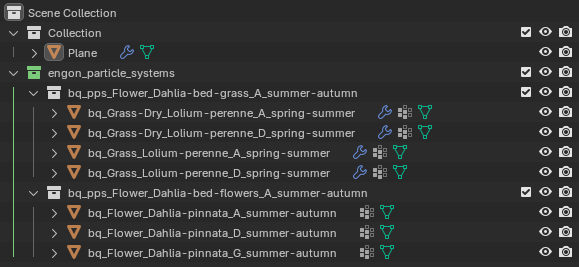
All particle systems you spawn with Link instance collection to scene enabled are automatically
added into engon_particle_systems collection.
Particle Settings
Sub-panel containing convenient and useful settings from particle systems at hand.
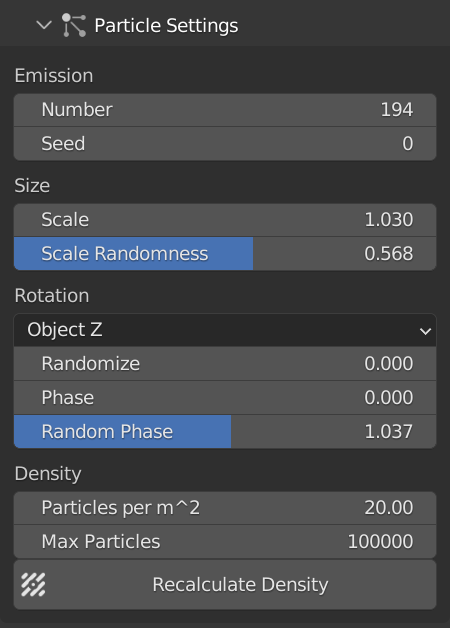
Numberis a count of particles generated on the object.-
Seedproperty randomizes the distribution. -
Scaleresizes all objects in the system. -
Scale Randomnessintroduces random factor into the scale. -
Orientation axisdefines how the objects should be rotated. Generally you will need two options.Ground Zwhere objects rotate around vertical axis. And aNormaloption which rotates the particles rotate around the normals of the object. Randomizeis an random offset from the orientation axis.Phaseis a rotation around the chosen axis.-
Random phaseintroduces some random offset into the rotation around chosen axis. -
Particles per m^2can be used to set the number of particles that will appear on 1x1m area. Max particleslimits the number of particles for theRecalculate densitybutton.Recalculate densityautomatically recalculates the density based on the area of the underlying mesh depending on theParticles per m^2value. Useful after scaling emitter.
Visibility Settings
Sub-panel that can be used to tweak viewport visibility settings of polygoniq particle systems across the scene or for the active particle system.
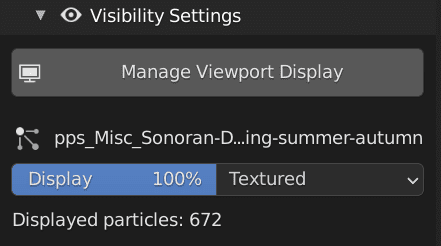
Displaylets you choose how much particles to display in percents.Display asallows selecting how the instanced objects are displayed in scenes.Displayed particlesis the count of currently displayed particles.
To manage viewport visibility across the scene you can use the Manage Viewport Visibility
operator.
Tip
Visibility settings are useful to optimize viewport performance. To maximize performance set
the display to the minimal feasible number and the display as to wireframe. This will not
affect the render at all.
Weight Painting
botaniq comes with simplified weight painting to enable even more precise customization of the
particle system location.
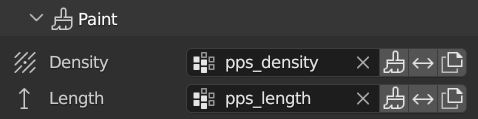 There are two weight painting options. You can either paint
 density or length. Clicking the
brush button to corresponding option enables weight paint mode. To invert a weight paint masks, use the  button. To duplicate a mask, use the
  button.
More information about weight painting (brushes, vertex groups, ...) is available in the official blender documentation
Warning
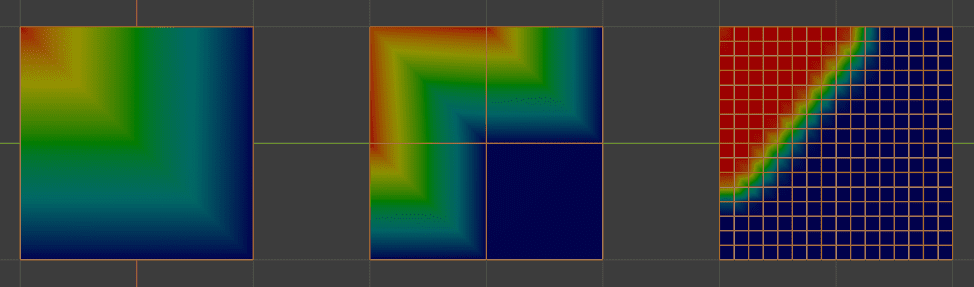
In order for weight paint to work properly you must have the target object subdivided enough as
each vertex carries information about how many objects should spawn near it. (Red=Density 1,
Blue=Density 0)
Texture
Similar to weight painting, textures can be used to affect the density and size of particles in the
particle system. From there,
you can customize the texture source, and adjust how much the texture affects particle density with
Density factor and particle scale with Scale factor. To adjust the scale and position of the
texture, you can tweak the properties in texture mapping.
The Texture sub-panel is visible only when the particle system uses a texture to control density or size.
Adding a texture to a particle system
You can add textures to a chosen particle system by going to the
Properties Editor - Particles - Texturesand create a new texture or add an existing one.
Then, in Properties Editor - Texture - Influence check the Density and Physics Velocity
checkboxes. Texture Panel in Engon should appear now.
Objects (Instance collection)
Sub-panel that contains information about all of the objects in the instance collection from where objects are being scatter.
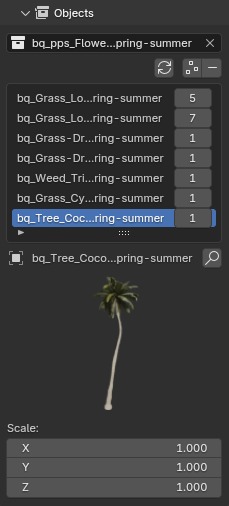
Refreshupdates the scatter if you edited the collection contents yourselves in outliner.Append Selectionadds currently selected objects into the active scatter.-removes active scatter object from the collection.Asset countrepresents the chance of the object in collection being generated. For example, if you set object A’s count to 10 and object B’s count to 1, there is a 10:1 chance that object A will appear. In praxis, this means you will have 10 models of grass for every 1 model of a flower.Previewis displayed for the selected object if it is known toengon. You can click the magnifying glass icon to open detailed description of the asset for more information.Scalecan be used to manipulate the scale of the individual objects.